 Skip to content
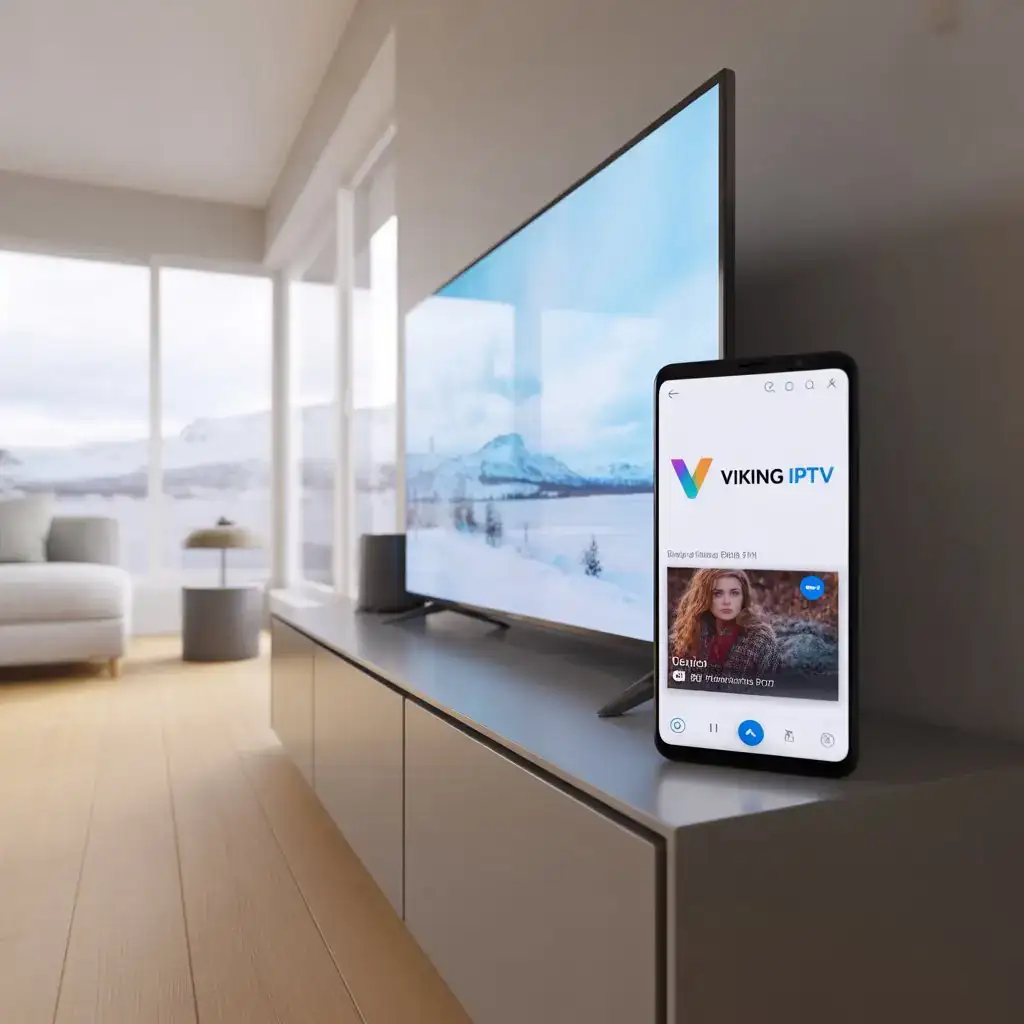
In today’s world of streaming, Android devices are one of the most popular platforms for watching IPTV. Whether it’s a smartphone, Android TV, or tablet, you can easily enjoy thousands of live channels and on-demand content through the right IPTV apps.
In this comprehensive guide, we’ll walk you through how to use IPTV Android, recommend the best IPTV app for Android, and explain how to configure them using your subscription with Viking IPTV.
 What is IPTV and Why Use It on Android?
IPTV (Internet Protocol Television) is a method of streaming live TV and video content over the internet instead of traditional cable or satellite. It’s flexible, affordable, and accessible from multiple platforms—especially Android.
Why Android?
-
 Widely available on phones, tablets, and TVs
-
- Simple app installations via Google Play or APKs
-
- Compatible with dozens of IPTV players
-
- Easy remote control support (for Android TV)
-
- Seamless integration with Viking IPTV
Step-by-Step: How to Use IPTV Android
Here’s how to get started:
1. Choose an IPTV App
There are many IPTV players available for Android. Below is a list of the top 10+ best IPTV apps we’ll explore in detail shortly.
2. Get Your Viking IPTV Subscription
Make sure you have an active Viking IPTV subscription. Once you sign up, you’ll receive:
-
- M3U URL
-
- EPG URL (optional)
-
- Xtream Codes API (username, password, server URL)
3. Download and Install the App
You can find many IPTV apps on Google Play Store. For others, you might need to sideload them using APK files.
4. Enter Your IPTV Credentials
Open the app and input your IPTV details (M3U or Xtream Codes login).
5. Start Watching
Once loaded, you’ll have access to 25,000+ live channels and 100,000+ VODs from Viking IPTV.
 Top 12 Best IPTV App for Android
Let’s go over the top IPTV apps that are compatible with Android:
1. IPTV Smarters Pro
-
- Clean interface, Xtream Code login support
-
- Best for Viking IPTV
-
- Supports VOD, live TV, EPG, parental controls
2. TiviMate IPTV Player
-
- Best for Android TV
-
- EPG-friendly, sleek UI, favorites, catch-up TV
-
- Premium version unlocks advanced features
3. XCIPTV Player
-
- Modern design
-
- Supports M3U and Xtream Codes
-
- Customizable UI and built-in player
4. Flix IPTV
-
- Great performance, subtitle support
-
- MAC activation model
-
- Supports external players (MX Player, VLC)
5. Perfect Player
-
- Lightweight, supports EPG and logos
-
- Good for advanced users
-
- M3U and XSPF playlist compatibility
6. GSE Smart IPTV
-
- Highly customizable, advanced settings
-
- Supports JSON, M3U, and Xtream login
-
- Works on phones and Android TV
7. OTT Navigator
-
- Powerful filtering, customizable layouts
-
- Best for organizing big IPTV libraries
-
- No ads, very fast
8. Lazy IPTV
-
- Easy M3U playlist handling
-
- Supports YouTube links and online radios
-
- Minimal UI but fast
9. Kodi (with IPTV Add-ons)
-
- Use PVR IPTV Simple Client add-on
-
- Advanced, fully customizable interface
-
- Can integrate with other streaming add-ons
10. Smart IPTV
-
- MAC-based activation
-
- Best for TV devices
-
- Needs manual playlist upload via web portal
11. VLC Media Player
-
- Basic but effective
-
- Supports M3U links
-
- No setup complexity
12. OTT Player
-
- Clean interface, supports multiple playlists
-
- Works well with EPG and catch-up
 How to Install IPTV Apps on Android
 For Android Phones & Tablets:
-
- Open Google Play Store
-
- Search and install your chosen IPTV app (e.g., IPTV Smarters Pro)
-
- Launch the app
-
- Input your Viking IPTV login (Xtream Codes or M3U)
-
- Start watching!
 For Android TV:
-
- Use Play Store or sideload APK via USB or Downloader app
-
- Install the IPTV app (we recommend TiviMate or Flix IPTV)
-
- Open the app and enter your Viking IPTV details
-
- You’re good to go!
 For Sideloaded Apps:
-
- Allow “Install unknown apps” in Android settings
-
- Download the APK from a trusted site
 Extra Tips for the Best IPTV Experience on Android
-
- Use a VPN if your ISP throttles IPTV traffic
-
- Choose apps that support subtitles (e.g., Flix IPTV, VLC)
-
- Enable EPG guide for better channel browsing
-
- Use external players like MX Player if buffering occurs
-
- Always keep your app updated
 How to Change Language or Add Subtitles
Most Android IPTV apps allow subtitle switching:
-
- In IPTV Smarters, go to Settings > Player > Subtitle
-
- In VLC, click the screen, tap Subtitle > Select Track
-
- In Flix IPTV, you can choose subtitle language per movie
Viking IPTV provides multiple languages and subtitle support including:
-
- Swedish
-
- English
-
- Norwegian
-
- Danish
-
- German
-
- Arabic
-
- French
-
- And more…
 Why Choose Viking IPTV for Android?
-
 Based in Sweden, designed for Nordic users
-
- Supports all Android IPTV apps
-
 25,000+ global live channels
-
 100,000+ VODs in multiple languages
-
 Swedish and English support
-
 Private servers, 0 buffering
Conclusion
Now you know exactly how to use IPTV Android with the best apps available today. Whether you’re using an Android phone, tablet, or smart TV, Viking IPTV works flawlessly across all devices.
Pick the best IPTV app for Android from our list, configure your playlist, and enjoy a smooth, multilingual streaming experience—anytime, anywhere.



