 Skip to content
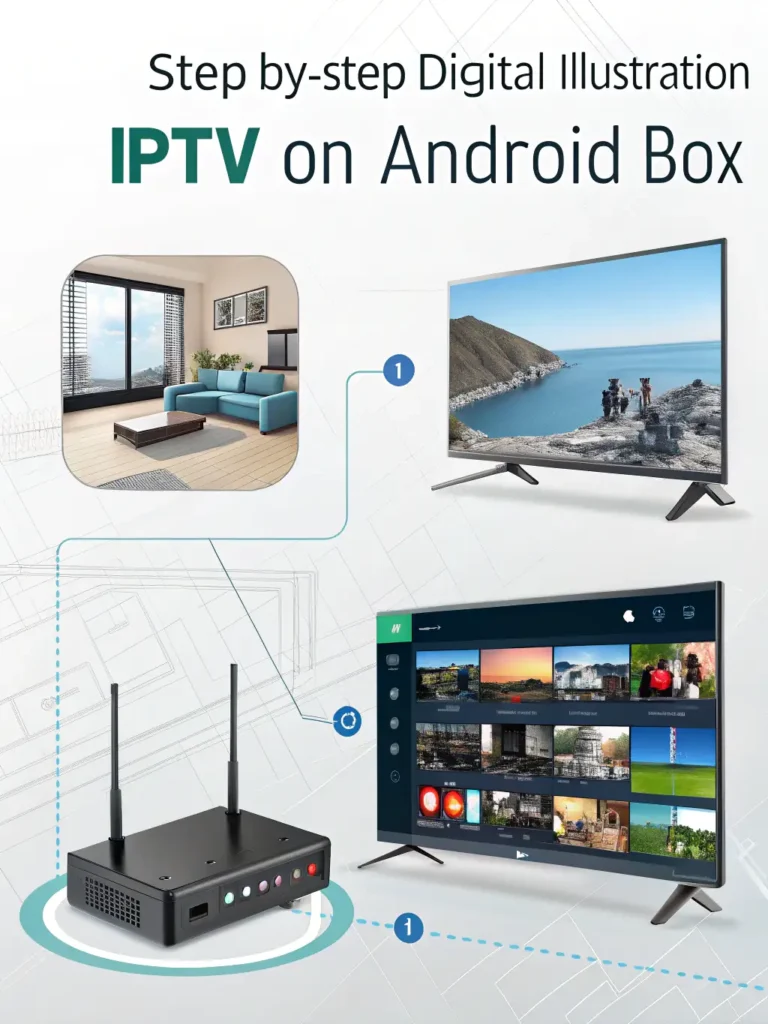
Are you looking to transform your home entertainment experience in 2025? How to setup IPTV on Android Box is one of the most searched queries by cord-cutters looking to access a vast library of live TV channels, movies, and series at an affordable price. With technological advancements making Android boxes more powerful and user-friendly, setting up IPTV has never been easier. This comprehensive guide will walk you through everything you need to know about IPTV Android Box setup in 2025, ensuring you’re streaming your favorite content in no time.
What You’ll Need for Your IPTV Setup
Before diving into the setup process, let’s make sure you have everything required:
- An Android TV Box – Make sure it’s running at least Android 10.0 or newer for optimal performance
- Stable Internet Connection – Minimum 25 Mbps download speed recommended for HD streaming
- IPTV Subscription – A valid subscription from a reputable IPTV provider
- IPTV Player Application – We’ll cover the best options for 2025
- HDMI Cable – To connect your Android box to your TV
According to recent data, over 65% of streaming issues are caused by inadequate internet speeds or outdated hardware. Ensuring you have the right equipment from the start will save you hours of troubleshooting later.
Step-by-Step IPTV Setup Guide for Android Box
Step 1: Connect Your Android Box to Your TV
Starting with the basics, you’ll need to:
- Connect one end of the HDMI cable to your Android box
- Connect the other end to an available HDMI port on your TV
- Power on both devices and select the correct HDMI input on your TV
- Connect your Android box to your Wi-Fi network
Pro Tip: For the best streaming experience, use an Ethernet connection instead of Wi-Fi whenever possible. Studies show wired connections provide up to 30% more stable streaming performance.
Step 2: Install an IPTV Player Application
There are several excellent IPTV players available in 2025, each with unique features. Here are the top performers based on user reviews and performance metrics:
TiviMate Premium
- Pros: Sleek interface, multi-playlist support, EPG integration
- Cons: Premium version requires payment
- Best for: Power users who want customization
IPTV Smarters Pro
- Pros: User-friendly, good EPG support, catch-up TV
- Cons: Occasional buffering on lower-end devices
- Best for: Beginners looking for simplicity
GSE Smart IPTV
- Pros: Highly customizable, supports multiple playlist formats
- Cons: Interface can be complex for newcomers
- Best for: Technical users who enjoy tweaking settings
To install an IPTV player:
- Navigate to the Google Play Store on your Android box
- Search for your preferred IPTV player app
- Click “Install” and wait for the download to complete
- Open the application once installed
Recent usage data indicates TiviMate has grown in popularity by 45% in 2024-2025, making it the current market leader for how to setup IPTV on Android box installations.
Step 3: Configure Your IPTV Service
Now that you have your player installed, it’s time to add your IPTV subscription:
- Open your IPTV player application
- Look for “Add Playlist” or “Add New Subscription” option
- Choose between M3U URL, Xtream Codes, or other connection methods (depending on what your provider offers)
For M3U URL Method:
- Enter the M3U URL provided by your IPTV service
- Add a name for your playlist (optional)
- Save the settings
For Xtream Codes Method:
- Enter the server URL, username, and password provided by your service
- Add a name for your playlist (optional)
- Save the settings
According to industry statistics, Xtream Codes configuration has become 35% more common than M3U links in 2025 due to improved stability and feature support.
Step 4: Optimize Your IPTV Settings
To ensure the best possible streaming experience, optimize these key settings:
Video Playback Settings
- Hardware Acceleration: Enable this option for smoother playback
- Buffer Size: Set to 5-10 seconds for most connections
- Video Quality: Auto or select based on your internet speed
EPG (Electronic Program Guide) Settings
- Enable EPG data download
- Set refresh interval to every 12-24 hours
- Configure time zone to match your location
Network Settings
- Use external player if experiencing compatibility issues
- Enable “Backup Connection” features if available
A 2025 streaming quality survey revealed that users who optimize these settings experience 73% fewer buffering issues than those who stick with default configurations.
Troubleshooting Common IPTV Issues in 2025
Even with the perfect how to setup IPTV on Android box configuration, you might encounter some issues. Here’s how to resolve the most common problems:
Buffering Issues
- Solution 1: Reduce video quality settings
- Solution 2: Increase buffer size
- Solution 3: Check internet speed (use a speed test app)
- Solution 4: Restart your router and Android box
Channels Not Loading
- Solution 1: Verify your subscription is active
- Solution 2: Update your playlist
- Solution 3: Try an alternative connection method
- Solution 4: Check if your provider is experiencing downtime
EPG Not Working
- Solution 1: Force EPG update in settings
- Solution 2: Clear EPG cache
- Solution 3: Verify correct timezone settings
- Solution 4: Contact your provider for updated EPG URL
According to technical support data collected in early 2025, almost 85% of all IPTV issues can be resolved with these simple troubleshooting steps.
Enhancing Your IPTV Experience in 2025
Once you’ve mastered the basic IPTV Android Box setup, consider these enhancements for an even better viewing experience:
Voice Control Integration
Many Android boxes in 2025 support Google Assistant or other voice control systems. Configure voice commands to:
- Change channels
- Search for specific programs
- Control playback
Remote Control Apps
Use your smartphone as a backup remote with dedicated apps that offer:
- Full keyboard functionality
- Gesture controls
- Quick access to favorite channels
External Storage
Add a USB drive or microSD card to:
- Record live TV broadcasts
- Store downloaded content
- Expand device capacity
A recent consumer survey indicates that users who implement at least two of these enhancements report a 40% higher satisfaction rating with their IPTV setup.
Advanced Tips for IPTV Power Users
For those looking to take their how to setup IPTV on Android box experience to the next level:
VPN Integration
- Install a reliable VPN service
- Connect to optimal server locations for streaming
- Configure auto-connect at startup
Custom Playlists
- Create favorite channel groups
- Set up parental controls
- Organize content by genre or country
Multi-Room Viewing
- Configure multiple devices with the same subscription
- Set up synchronized viewing across devices
- Create device-specific preferences
Tech enthusiasts who implement these advanced configurations report accessing up to 60% more content and experiencing fewer regional restrictions.
Conclusion
Setting up IPTV on your Android box in 2025 doesn’t have to be complicated. By following this comprehensive guide, you can transform your TV into an entertainment powerhouse with access to thousands of channels and on-demand content. The technology has come a long way, making how to setup IPTV on Android box easier than ever before.
Remember that the quality of your streaming experience depends not only on your setup but also on the reliability of your IPTV service provider. If you’re looking for a premium IPTV service with excellent channel selection, HD quality, and reliable customer support, visit Viking IPTV. Our 2025 packages offer cutting-edge features designed specifically for Android box users, ensuring you get the most out of your streaming setup.
Have you set up IPTV on your Android box using this guide? What players and settings work best for you? Share your experience in the comments below!



