 Skip to content
How to Install GSE IPTV on Samsung Smart TV: Your Complete Setup Guide
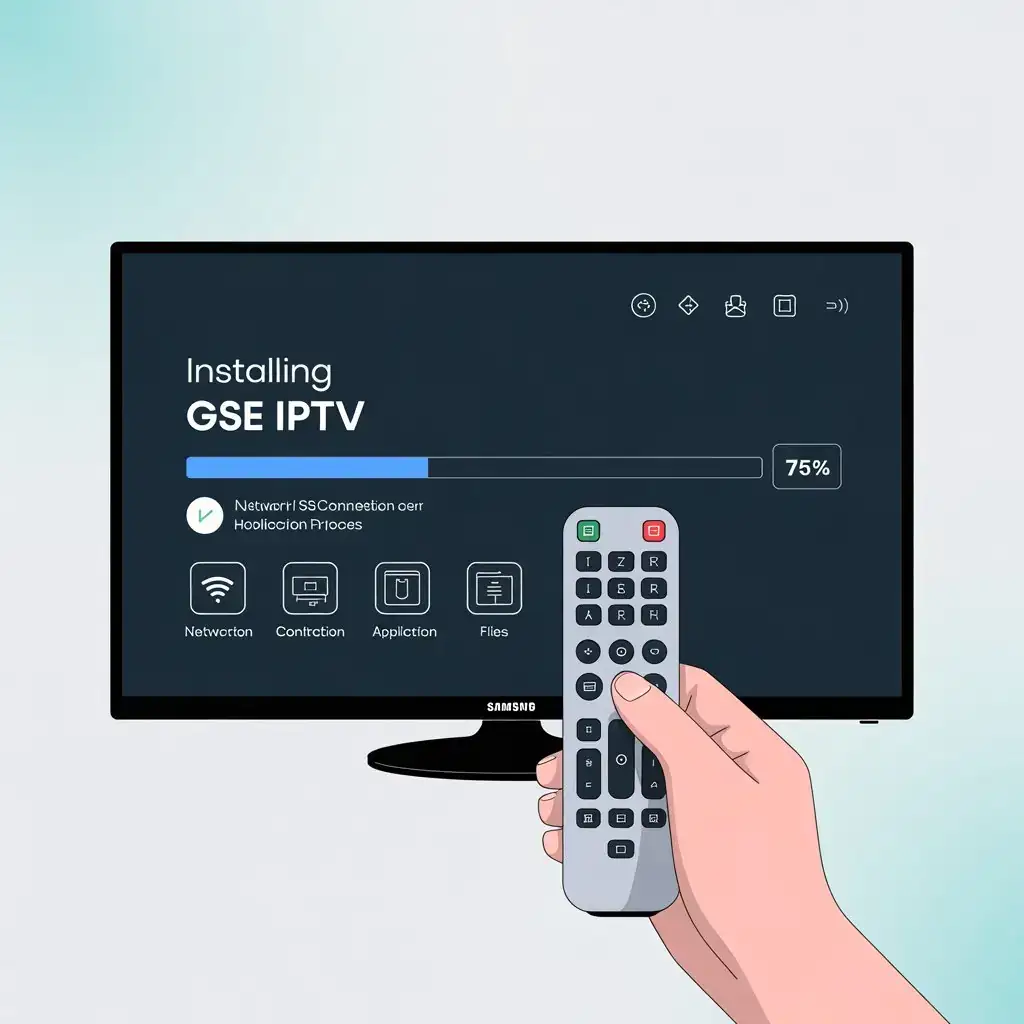
Are you looking for a seamless way to access your favorite streaming content on your Samsung Smart TV? How to install GSE IPTV on Samsung Smart TV is one of the most searched queries by Samsung TV owners wanting to expand their entertainment options. GSE Smart IPTV is a versatile application that allows you to stream television content from various sources directly on your Samsung device. This comprehensive guide will walk you through the entire installation and setup process, ensuring you can enjoy your preferred channels in no time.
What is GSE Smart IPTV?
Before diving into the installation process, let’s understand what GSE Smart IPTV actually is. GSE Smart IPTV is a powerful IPTV player application that supports multiple playlist formats, including M3U, XSPF, and more. It’s designed to provide users with a customizable streaming experience across various devices, including Samsung Smart TVs.
The app offers features such as:
- Electronic Program Guide (EPG) support
- Multiple playlist management
- Customizable interface
- Favorite channels organization
- Password protection for parental control
Prerequisites for Installing GSE IPTV
Before proceeding with the GSE Smart IPTV Samsung download, ensure you have:
- A Samsung Smart TV running Tizen OS (2015 models or newer)
- Stable internet connection (preferably high-speed)
- An IPTV subscription with M3U playlist URL or EPG URL
- Samsung account (for app store access)
- USB flash drive (alternative method)
Step-by-Step Installation Guide for GSE IPTV on Samsung Smart TV
Method 1: Direct Download from Samsung App Store
Power on your Samsung Smart TV and ensure it’s connected to the internet.
Access the Samsung App Store:
- Press the Home button on your remote control
- Navigate to and select “Apps” from the main menu
- This will open the Samsung App Store
Search for GSE IPTV:
- Select the Search icon (magnifying glass) in the top right corner
- Using the on-screen keyboard, type “GSE IPTV” or “GSE Smart IPTV”
- Note: If you don’t find the app, it might not be available in your region’s app store
Download and Install:
- When GSE IPTV appears in the search results, select it
- Click on the “Install” or “Download” button
- Wait for the installation to complete
Launch GSE IPTV:
- Once installed, select “Open” to launch the application
- Alternatively, you can find it in your Apps section for future use
Method 2: Using USB Installation (Alternative Method)
If GSE IPTV isn’t available in your Samsung App Store, you can try the USB installation method:
Download the GSE IPTV APK on your computer from a trusted source.
Prepare your USB drive:
- Connect a USB flash drive to your computer
- Create a new folder named “GSE” on the USB drive
- Copy the downloaded APK file into this folder
Connect USB to your Samsung TV:
- Insert the USB drive into one of the USB ports on your Samsung Smart TV
- Wait for the TV to recognize the USB device
Access the File Explorer:
- Navigate to the source menu on your TV
- Select USB device
- Browse to the GSE folder
Install the APK:
- Select the GSE IPTV APK file
- Follow the on-screen instructions to install
- Grant any permissions requested during installation
Configuring GSE IPTV with Your Subscription
Once you’ve successfully completed the how to install GSE IPTV on Samsung Smart TV process, it’s time to configure the app with your IPTV subscription:
Launch the GSE IPTV app from your Samsung TV’s app menu.
Access Settings:
- Navigate to the menu icon (usually three horizontal lines)
- Select “Settings” or “Preferences”
Add Your IPTV Playlist:
- Select “Add New Playlist”
- Choose the playlist format (typically M3U)
- Enter a name for your playlist (e.g., “My IPTV Channels”)
- Input the M3U URL provided by your IPTV service provider
- Alternatively, if you have the playlist file on a USB drive, you can import it directly
Configure EPG (Optional):
- If your provider offers an Electronic Program Guide, select “EPG Settings”
- Enter the EPG URL provided by your service provider
- Set the update frequency according to your preference
Save and Load:
- Save your settings
- Return to the main interface
- Your channels should now begin loading
Troubleshooting Common Installation Issues
Even with a detailed guide on GSE Smart IPTV Samsung download, you might encounter some issues:
App Not Found in Store:
- GSE IPTV may not be available in all regions
- Try changing your Samsung account region or use the USB method
Installation Fails:
- Ensure your TV has sufficient storage space
- Check that your TV’s software is up to date
- Restart your TV and try again
App Crashes on Launch:
- Clear the app cache (Settings > Apps > GSE IPTV > Clear Cache)
- Uninstall and reinstall the application
- Ensure your TV’s operating system is compatible
Streams Not Loading:
- Verify your internet connection is stable and fast enough
- Double-check your playlist URL for any typos
- Contact your IPTV provider to ensure your subscription is active
Optimizing Your GSE IPTV Experience
To get the most out of your GSE IPTV installation:
Organize Your Channels:
- Create favorites lists for easy access to preferred channels
- Use the category filter to sort channels by type (sports, movies, etc.)
Adjust Video Settings:
- Configure buffer size based on your internet speed
- Set your preferred video quality to balance performance and quality
Set Up Parental Controls:
- Password-protect adult content or premium channels
- Create separate profiles for different family members
Regular Updates:
- Check for app updates periodically
- Update your playlist regularly if your provider offers an updated URL
Conclusion on How to Install GSE IPTV on Samsung Smart TV
Installing GSE IPTV on your Samsung Smart TV opens up a world of content possibilities beyond traditional cable or satellite offerings. By following this comprehensive guide, you should now have a fully functional IPTV setup that provides access to your favorite channels and content.
Remember that streaming quality largely depends on your internet connection speed and the reliability of your IPTV service provider. For optimal performance, we recommend using a high-speed internet connection and keeping your Samsung TV’s software updated.
Call to Action
Looking for a reliable IPTV service to use with your newly installed GSE IPTV app? Visit Viking IPTV for premium IPTV subscriptions that offer high-quality streams, extensive channel lists, and excellent customer support. Viking IPTV provides compatible playlists that work seamlessly with GSE IPTV on Samsung Smart TVs, ensuring you get the most out of your streaming experience.



