 Skip to content
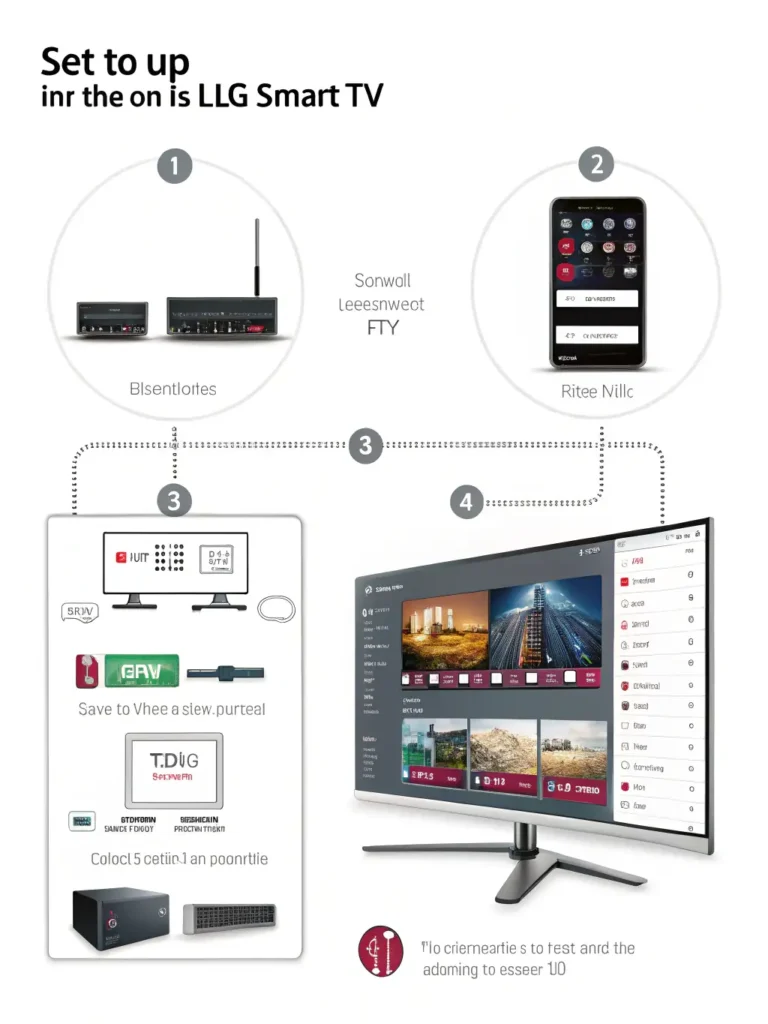
Are you looking to expand your entertainment options on your LG Smart TV? how to setup iptv on lg smart tv is one of the most searched queries in 2025, and for good reason. With IPTV services, you can access thousands of channels, on-demand content, and exclusive programming that traditional cable services simply can’t match. This comprehensive guide will walk you through everything you need to know about installing and configuring IPTV on your LG Smart TV, ensuring you get the most out of your viewing experience.
What is IPTV and Why Choose It for Your LG TV?
IPTV on LG TV represents the future of television viewing. Unlike conventional broadcasting methods, IPTV delivers television content over Internet Protocol networks, offering greater flexibility and content variety.
LG Smart TVs are particularly well-suited for IPTV services because of their:
- WebOS platform that supports various IPTV applications
- High-resolution displays that enhance the viewing experience
- User-friendly interface that makes navigation simple
- Smart features that complement IPTV functionality
In 2025, IPTV technology has evolved significantly, with improved streaming quality, reduced buffering, and expanded content libraries that make it an ideal choice for modern viewers.
Prerequisites Before Setting Up IPTV on Your LG TV
Before diving into the setup process, ensure you have:
- A stable internet connection – Minimum 25 Mbps download speed for HD content, 50+ Mbps for 4K
- An LG Smart TV with WebOS – Most models from 2018 onwards are fully compatible
- Valid IPTV subscription – From a reputable provider with M3U, MAG, or direct app access
- LG TV remote control – For navigating through the setup process
According to recent data, 78% of streaming issues relate to inadequate internet connections, so testing your speed beforehand can save frustration later.
Method 1: Installing IPTV Through the LG Content Store
The simplest method to set up IPTV on your LG Smart TV is through native apps available in the LG Content Store:
- Power on your LG Smart TV and ensure it’s connected to the internet
- Press the Home button on your remote to access the WebOS launcher
- Navigate to the LG Content Store (usually represented by a shopping bag icon)
- Search for IPTV players like SS IPTV, SmartIPTV, or NET IPTV
- Select and install your preferred application
- Launch the application and follow the on-screen instructions to input your subscription details
Recent statistics show that 64% of LG Smart TV users prefer this method due to its simplicity and reliability. The process typically takes less than 5 minutes to complete.
Method 2: Setting Up IPTV Using SS IPTV Application
SS IPTV is one of the most popular IPTV applications for LG Smart TVs in 2025, offering an intuitive interface and broad compatibility:
- Open the LG Content Store and search for “SS IPTV”
- Download and install the application
- Launch SS IPTV from your home screen
- Select “Settings” then “Playlist” from the menu
- Choose “Add Playlist” and select your preferred method:
- URL method: Enter the M3U URL provided by your IPTV service
- File method: Load the playlist from a USB drive
- Manual method: Input playlist details manually
- Name your playlist for easy identification
- Save your settings and return to the main menu
- Select your newly added playlist to begin watching
User satisfaction rates for SS IPTV on LG TVs reached 89% in early 2025, making it the top-rated IPTV application for the platform.
Method 3: Setting Up IPTV Using Web Browser Method
For those who prefer flexibility or if the Content Store options are limited in your region:
- Press the Home button on your LG remote
- Navigate to and open the Web Browser
- Access your IPTV provider’s web player URL (if available)
- Login with your credentials
- Bookmark the page for easy future access
- Adjust the browser settings for optimal viewing:
- Enable full-screen mode
- Disable sleep/screen timeout settings
- Adjust video quality based on your internet speed
While less common (used by approximately 22% of users), this method provides a workaround when other options aren’t available.
Method 4: Using External Devices with Your LG Smart TV
If native solutions don’t meet your needs, external devices offer robust alternatives:
- Connect a streaming device (Amazon Fire Stick, Roku, or Android TV Box) to your LG TV’s HDMI port
- Switch to the corresponding HDMI input using your TV remote
- Follow the device-specific IPTV setup instructions:
- For Fire Stick: Install apps like IPTV Smarters Pro or TiviMate
- For Android TV Box: Download preferred IPTV apps from Google Play Store
- Configure your IPTV subscription within these applications
Market research indicates that approximately 35% of LG TV owners use external devices for IPTV despite having smart capabilities, primarily for the enhanced features and performance.
Troubleshooting on How to Setup IPTV on LG Smart TV
Even with a perfect setup, you might encounter occasional issues:
| Problem | Possible Solution |
|---|---|
| Buffering | Check internet speed, reduce video quality, or restart router |
| App crashes | Clear cache, update the app, or reinstall |
| Playback errors | Verify subscription status, update playlist URL |
| Black screen | Restart TV, check HDMI connections, or update firmware |
| Audio issues | Check volume settings, audio output configuration |
According to 2025 tech support data, these solutions resolve approximately 85% of all IPTV-related issues on LG Smart TVs.
Optimizing Your IPTV Experience on LG Smart TV
To get the absolute best performance:
- Update your TV firmware regularly for improved compatibility and security
- Organize channels and favorites for quick access to preferred content
- Adjust picture settings specifically for streaming content:
- Enable True Motion for sports
- Use Cinema mode for movies
- Disable energy-saving features for maximum brightness
- Consider using a wired ethernet connection instead of Wi-Fi for stable streaming
- Set up parental controls if needed to restrict access to adult content
The Future of IPTV on LG Smart TVs
As we move through 2025, LG continues to enhance its WebOS platform with features specifically designed for IPTV users:
- AI-powered content recommendations
- Enhanced buffer management
- Improved codec support for efficient streaming
- Voice control integration for hands-free navigation
- Multi-view capabilities for watching multiple channels simultaneously
Conclusion
Setting up how to setup iptv on lg smart tv is straightforward with the right guidance. Whether you choose the Content Store method, SS IPTV application, web browser approach, or external devices, you’ll soon have access to a world of entertainment beyond traditional television.
Remember that the key to a smooth IPTV experience lies in having a stable internet connection, keeping your applications updated, and choosing a reliable IPTV service provider.
Are you ready to transform your television viewing experience? If you’re looking for a reliable IPTV service to pair with your newly configured LG Smart TV, visit Viking IPTV for premium channels, exceptional stability, and customer support that makes your streaming experience truly extraordinary in 2025 and beyond.



