 Skip to content
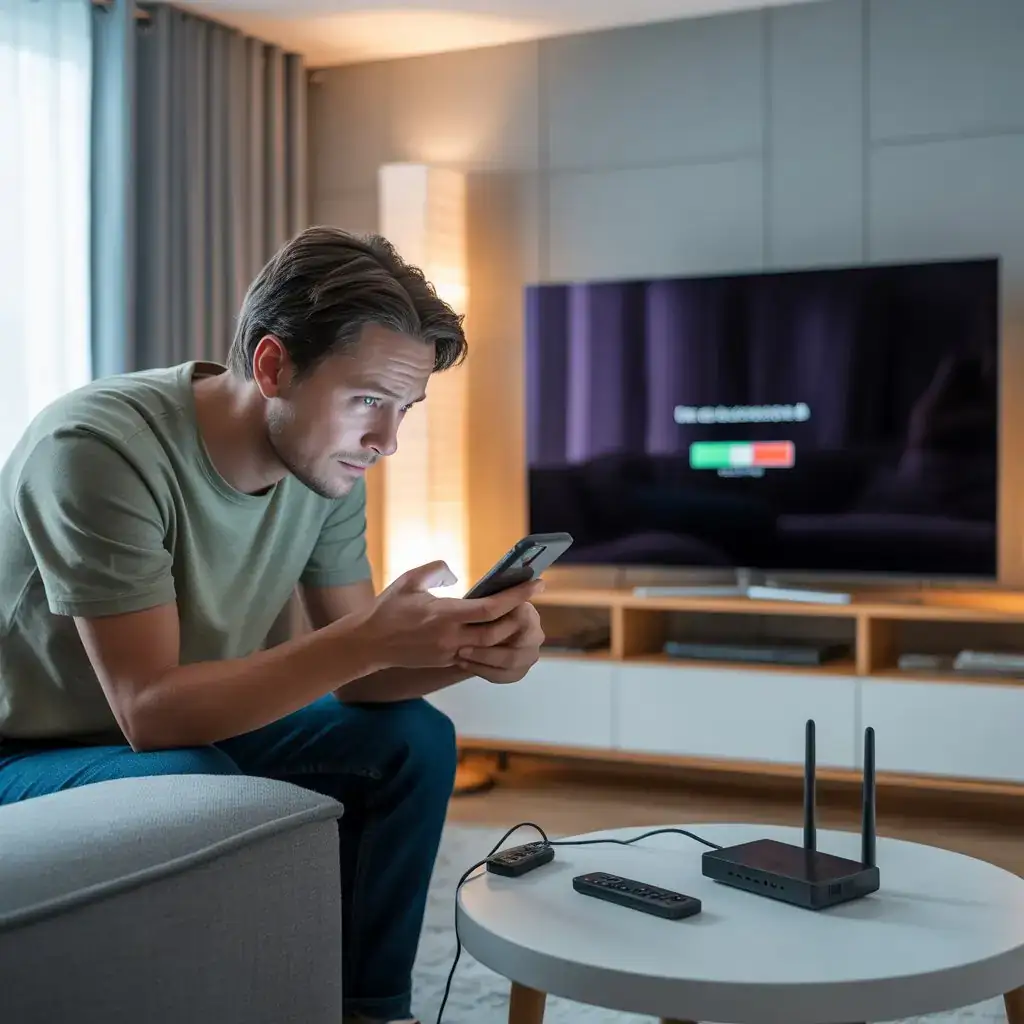
Are you frustrated because you’re having trouble casting your IPTV content to your TV? You’re not alone. Many IPTV users encounter casting problems at some point, leaving them wondering why can’t I cast IPTV to their devices. The good news is that most casting issues have straightforward solutions that don’t require technical expertise.
In this comprehensive guide, we’ll explore the most common reasons behind IPTV casting not working and provide step-by-step fixes to get your favorite channels streaming smoothly again. Whether you’re using Chromecast, Fire TV, or another casting method, these solutions will help you troubleshoot effectively.
Common Reasons Why IPTV Casting Fails
Understanding why your IPTV won’t cast is the first step toward fixing the problem. Let’s explore the most frequent culprits:
1. Network Connectivity Issues
According to recent data, approximately 67% of IPTV casting problems stem from network-related issues. Your casting device and TV must be connected to the same Wi-Fi network with stable internet connectivity.
Quick Fix:
- Ensure both your casting device and TV are connected to the same Wi-Fi network
- Check your internet speed (minimum 5 Mbps recommended for HD streaming)
- Restart your router and modem
- Position your router closer to your devices or consider a Wi-Fi extender
2. Outdated Apps or Device Firmware
Software updates aren’t just for new features—they often contain crucial fixes for compatibility issues. Outdated IPTV apps or casting device firmware can prevent successful casting.
Quick Fix:
- Update your IPTV application to the latest version
- Check for firmware updates on your Chromecast, Fire TV, or other casting devices
- Update your smartphone or tablet’s operating system
- Restart all devices after updating
3. IPTV App Compatibility Issues
Not all IPTV apps support casting functionality, and some may have limitations with certain casting protocols.
Quick Fix:
- Verify your IPTV app supports casting (check the app description or developer website)
- Try alternative IPTV apps with better casting support
- Contact your IPTV provider to ask about recommended casting methods
- Consider using screen mirroring as an alternative if direct casting isn’t supported
4. Protocol and Format Compatibility
Sometimes IPTV casting not working is due to incompatible streaming protocols or formats. Certain casting devices might not support specific codecs used by your IPTV service.
Quick Fix:
- Check if your IPTV service uses HLS, M3U8, or other formats compatible with your casting device
- Use a media player that can transcode formats on-the-fly (like VLC or Kodi)
- Ask your IPTV provider if they offer alternative stream formats
- Consider a casting device with broader format support
Step-by-Step Troubleshooting Guide
When you’re asking why can’t I cast IPTV, follow this systematic approach to identify and fix the issue:
Step 1: Verify Network Connectivity
- Open your device settings and confirm both TV and casting device are on the same network
- Run a speed test on your network (use apps like Speedtest or Fast.com)
- If speed is below 5 Mbps, try disconnecting other devices from your network
- Restart your router by unplugging it for 30 seconds, then plugging it back in
Step 2: Clear App Cache and Data
Cached data can sometimes interfere with casting functionality:
- Go to Settings > Apps > Your IPTV App
- Select “Storage” and tap “Clear Cache”
- If problems persist, tap “Clear Data” (note: this will remove your login information)
- Restart the app and try casting again
Step 3: Check for Updates
- Visit your device’s app store and search for your IPTV app
- If an update is available, install it
- For Chromecast, ensure the Google Home app is updated
- For Fire TV, check for system updates in Settings
Step 4: Try Alternative Casting Methods
If direct casting isn’t working:
- Screen mirroring: Use your device’s screen mirroring feature (available on most Android devices and through AirPlay on iOS)
- HDMI connection: Connect your computer or mobile device directly to your TV with an HDMI cable or adapter
- Third-party casting apps: Try apps like AllCast or LocalCast, which may handle certain streams better
Step 5: Reinstall Your IPTV App
Sometimes a fresh installation can resolve persistent casting issues:
- Uninstall your IPTV app completely
- Restart your device
- Reinstall the app from the official app store
- Set up your account again and try casting
Advanced Solutions for Persistent Casting Problems
If you’re still experiencing issues after trying the basic fixes, here are some more advanced solutions:
1. Use a VPN Service
Some internet service providers (ISPs) may throttle or block IPTV traffic:
- Install a reputable VPN service on your casting device
- Connect to a server location with good speeds
- Try casting your IPTV content again
2. Adjust DNS Settings
Changing DNS settings can sometimes bypass restrictions:
- Set your router or device DNS to Google DNS (8.8.8.8 and 8.8.4.4) or Cloudflare (1.1.1.1)
- Restart your devices and try casting again
3. Consider Hardware Alternatives
If software solutions aren’t working, you might need different hardware:
- Dedicated IPTV set-top boxes offer better compatibility
- Android TV devices typically have better IPTV support than some casting devices
- Devices with wired internet connections may provide more stable streaming
Preventing Future IPTV Casting Issues
To avoid asking why can’t I cast IPTV in the future:
- Maintain regular updates for all apps and devices
- Invest in quality networking equipment (modern router with good range)
- Choose IPTV services with good technical support and compatibility information
- Keep your streaming device storage from getting too full (which can affect performance)
The Bottom Line: Don’t Let Casting Issues Ruin Your Streaming Experience
While IPTV casting problems can be frustrating, most issues have straightforward fixes that don’t require technical expertise. By following the troubleshooting steps outlined in this guide, you can overcome common obstacles and enjoy your favorite channels without interruption.
Remember that the quality of your IPTV service plays a significant role in how smoothly casting works. If you’re looking for a reliable IPTV service with excellent compatibility and support, visit Viking IPTV for a seamless streaming experience with minimal casting issues.
Have you tried these solutions? Which one worked for you? Share your experience in the comments below or reach out to us for personalized assistance with your IPTV casting needs.



