 Skip to content
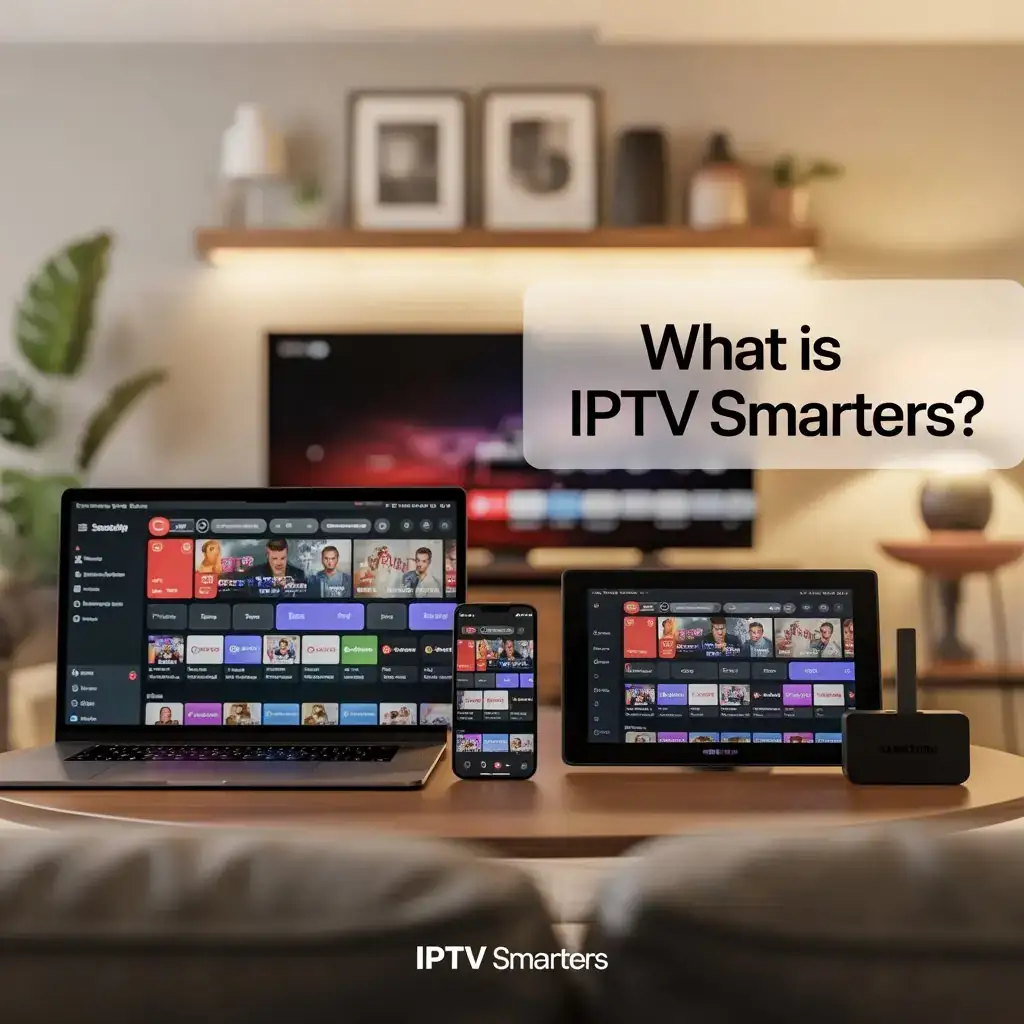
In today’s streaming era, one name keeps popping up among IPTV users: IPTV Smarters. Whether you’re a beginner looking to understand what this app is or an experienced streamer trying to install it on your device, this guide is for you. We’ll answer “what is IPTV Smarters”, explain “how does IPTV Smarters work”, explore its features, pros and cons, and walk you through installing it on smart TVs, Android, iOS, Windows, macOS, Samsung TV, and more.
With Viking IPTV, one of the leading IPTV providers in the Nordics, you get full support for IPTV Smarters – making it easier than ever to start streaming live TV, VOD, and more.
 What is IPTV Smarters?
IPTV Smarters (or IPTV Smarters Pro) is a free multimedia streaming app that allows users to watch live TV, movies, series, and catch-up TV from their IPTV provider. It’s compatible with M3U URL, Xtream Codes API, and JSON formats, making it highly flexible and powerful for IPTV users.
Unlike Kodi or VLC, IPTV Smarters offers a sleek, intuitive interface designed specifically for IPTV users. You get features like:
-
- EPG integration
-
- Multi-screen support
-
- Catch-up playback
-
- Parental controls
-
- Built-in player
-
- External player support
Note: IPTV Smarters does not provide any IPTV content on its own. You need to subscribe to an IPTV service like Viking IPTV to use the app.
 How Does IPTV Smarters Work?
IPTV Smarters is a player app, meaning it acts as a front-end to stream IPTV content provided by a third party, such as Viking IPTV. When you open the app, you’ll be asked to log in using one of the following:
-
- M3U Playlist URL
-
- Xtream Codes API (Username, Password, URL)
-
- JSON URL (Advanced providers only)
Once you enter your credentials, the app fetches all your IPTV content and organizes it into:
-
- Live TV categories
-
- Movies and TV Shows
-
- Catch-up TV (if your provider offers it)
-
- EPG Guide (TV guide)
The beauty of IPTV Smarters is its compatibility with almost every major platform.
 How to Set Up IPTV Smarters on Different Devices
Let’s go through how to install IPTV Smarters on various devices, step-by-step.
 1. IPTV Smarters on Windows PC
 Installation Steps:
-
- Visit the official IPTV Smarters website or Microsoft Store.
-
- Download the Windows version.
-
- Install and launch the app.
-
- Choose your login method (M3U or Xtream Codes).
-
- Enter your Viking IPTV credentials.
-
- Click Add User and start streaming!
Pro Tip: Use Xtream Codes login for faster syncing and better EPG performance.
 2. IPTV Smarters on macOS
Installation Steps:
-
- Download the macOS version from the IPTV Smarters official site.
-
- Drag the app to Applications.
-
- Open the app (you may need to allow it in security settings).
-
- Enter your Viking IPTV login credentials.
-
- Start streaming.
 3. IPTV Smarters on Android (Phones & Tablets)
Installation Steps:
-
- Go to the Google Play Store.
-
- Search for IPTV Smarters Pro.
-
- Install the app.
-
- Open and choose “Login with Xtream Codes API” or “Load Your Playlist.”
-
- Enter your Viking IPTV credentials.
-
- Start enjoying live TV and VOD.
4. IPTV Smarters on iOS (iPhone & iPad)
Installation Steps:
-
- Open the App Store.
-
- Search and install Smarters Player Lite (same as IPTV Smarters).
-
- Open and log in using your Viking IPTV info.
-
- Start watching live channels and movies.
 5. IPTV Smarters on Smart TVs (LG, Sony, Hisense, etc.)
Installation Steps:
-
- Open the TV’s App Store.
-
- Search for IPTV Smarters Pro (if not available, use a USB sideload method).
-
- Install the app.
-
- Enter your Viking IPTV credentials.
-
- Enjoy!
You may need to enable installation from unknown sources for sideloading.
6. IPTV Smarters on Samsung Smart TV
Samsung removed IPTV Smarters from the Smart Hub. But here’s how to still install it:
Using USB:
-
- Download the IPTV Smarters Tizen version from their official website.
-
- Extract and copy it to a USB stick.
-
- Plug into your Samsung TV.
-
- The app will show up under “My Apps”.
7. IPTV Smarters on Firestick / Fire TV
Installation Steps:
-
- Go to Settings > My Fire TV > Developer Options.
-
- Enable “Apps from Unknown Sources.”
-
- Install Downloader from the Amazon Store.
-
- Open Downloader and enter:
arduinoCopyEdithttps://www.iptvsmarters.com/smarters.apk
-
- Install the APK.
-
- Launch the app and login with Viking IPTV details.
 8. IPTV Smarters on Android TV Box
Same steps as Firestick, or:
-
- Open Play Store on Android Box.
-
- Search and install IPTV Smarters Pro.
-
- Log in and enjoy full TV experience.
 Pros and Cons of IPTV Smarters
Pros:
-
- Intuitive, easy-to-use UI
-
- Multi-device support
-
- Parental controls
-
- EPG and catch-up features
-
- External player support (MX, VLC)
 Cons:
Cons:
-
- No content included (you need an IPTV provider like Viking IPTV)
-
- Limited features on iOS
-
- App is sometimes removed from stores (you’ll need to sideload)
 Final Thoughts: Why Use IPTV Smarters with Viking IPTV?
Now that you understand what is IPTV Smarters and how does IPTV Smarters work, the next step is to get it working with a reliable IPTV provider.
Viking IPTV offers:
-
 Swedish support
-
- 25,000+ live channels
-
 100,000+ movies & series
-
 Nordic and international content
-
 Fast, stable servers
Whether you’re on a laptop, mobile, or Smart TV, IPTV Smarters with Viking IPTV is one of the best ways to experience top-quality IPTV.



