 Skip to content
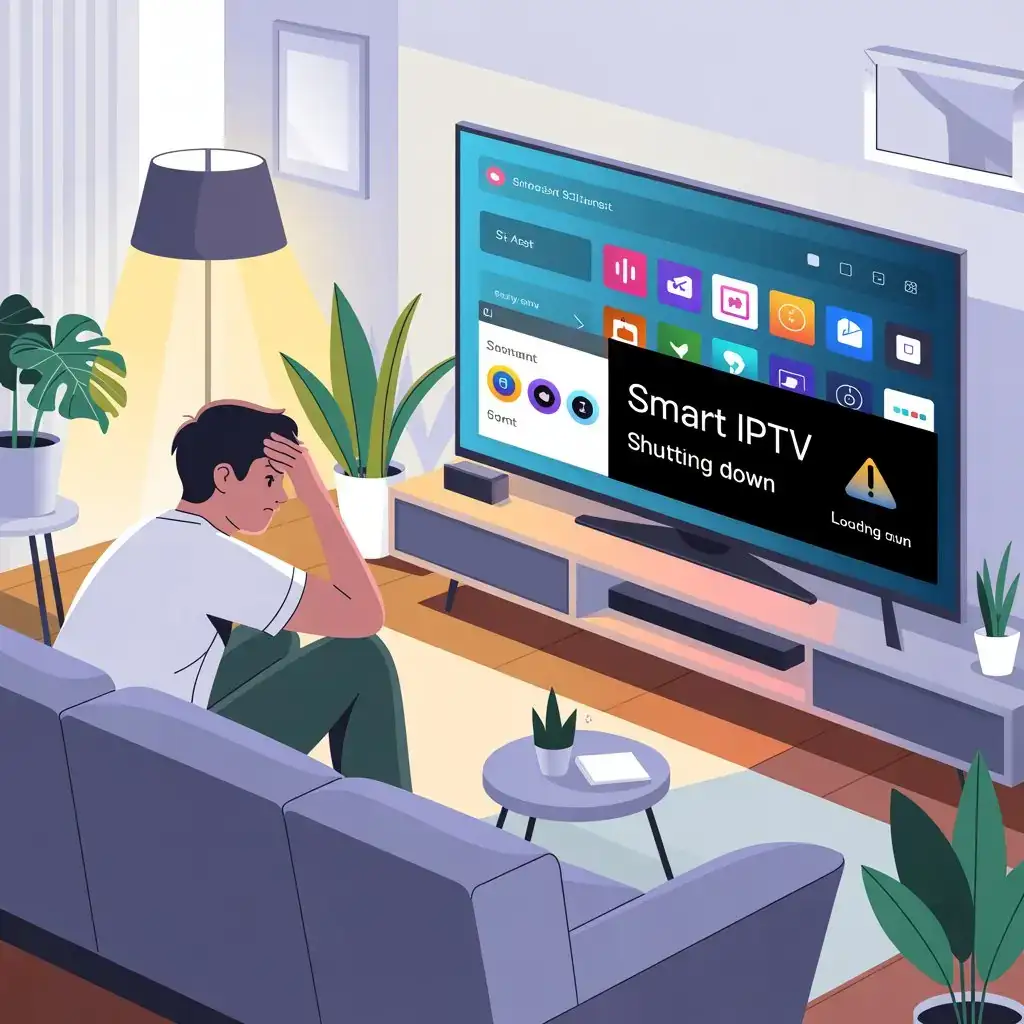
Are you frustrated on why does my samsung smart iptv shutting down without warning? You’re not alone. Many Samsung Smart TV users experience this common yet irritating problem. Whether you’re in the middle of your favorite show or just starting to browse content, sudden app crashes can ruin your viewing experience. This comprehensive guide will help you understand why your Samsung IPTV app is unstable and provide practical solutions to fix these persistent issues.
Understanding Why Samsung IPTV Apps Keeps Closing
Samsung Smart TVs are powerful entertainment hubs, but their IPTV applications can sometimes be temperamental. Before we dive into solutions, it’s important to understand the common reasons behind these frustrating shutdowns.
Common Causes of Samsung IPTV App Crashes
Outdated Software: Samsung TVs require regular updates to maintain optimal performance. Outdated system software is often the primary culprit behind app crashes.
Memory Limitations: Smart TVs have limited RAM compared to computers. When too many apps are running or cached data accumulates, your samsung iptv app keeps closing unexpectedly.
Network Connectivity Issues: Unstable internet connections cause streaming apps to malfunction and shut down.
App-Specific Problems: Sometimes the issue lies with the IPTV app itself, especially if it’s poorly optimized for your TV model.
Hardware Limitations: Older Samsung TV models may struggle to run newer, more demanding IPTV applications.
Quick Fixes for Samsung IPTV Shutdown Issues
1. Restart Your Samsung TV
A simple restart can resolve temporary glitches:
- Turn off your TV using the remote
- Unplug the power cord from the wall outlet
- Wait for 30 seconds (this allows the capacitors to discharge)
- Plug the power cord back in and turn on your TV
This basic troubleshooting step clears temporary memory and often resolves minor software hiccups that cause app crashes.
2. Update Your Samsung TV’s Software
Outdated software is frequently responsible when your Samsung Smart IPTV keeps shutting down:
- Press the Home button on your remote
- Navigate to Settings
- Select Support
- Choose Software Update
- Select Update Now
If an update is available, follow the on-screen instructions to install it. Software updates often include bug fixes specifically designed to improve app stability.
3. Clear Cache and Data
Over time, IPTV apps accumulate cached data that can cause performance issues:
- Navigate to Settings on your Samsung TV
- Select Apps
- Find and select your IPTV application
- Choose “Clear cache” option
- For persistent problems, select “Clear data” (Note: this will remove your login information)
Clearing the cache removes temporary files without affecting your personal settings, while clearing data gives the app a fresh start.
Advanced Solutions for Persistent IPTV Crashes
If your Samsung IPTV app continues to shut down after trying the quick fixes, consider these more advanced solutions:
1. Manage Memory Usage
Samsung Smart TVs have limited RAM resources. To optimize performance:
Close unused apps running in the background:
- Press the Home button
- Navigate to Recent Apps (or use the Recent button on some remotes)
- Close all unnecessary applications
Avoid running multiple memory-intensive apps simultaneously
Perform regular TV restarts to clear memory
2. Check Your Internet Connection
Streaming requires a stable internet connection. When your connection is unstable, it can trigger app shutdowns:
- Run a speed test on another device to verify your connection speed
- Ensure you have at least 5 Mbps for standard streaming or 25 Mbps for 4K content
- Connect your TV via Ethernet cable instead of Wi-Fi for more stability
- Position your router closer to your TV or consider a Wi-Fi extender
3. Reinstall Your IPTV Application
Sometimes a complete reinstallation is necessary:
- Go to the Home screen
- Navigate to Apps
- Select Settings (gear icon)
- Find your IPTV app
- Select “Uninstall”
- Restart your TV
- Navigate to the App Store
- Reinstall your IPTV application
A fresh installation eliminates corrupted files that might be causing crashes.
Hardware Considerations for Samsung IPTV Users
1. Check for Overheating Issues
Overheating can cause system instability and app crashes:
- Ensure your TV has proper ventilation (at least 4 inches of clearance on all sides)
- Check that vents are dust-free
- Avoid placing your TV in enclosed spaces or direct sunlight
2. External Storage Solutions
If your TV is running out of internal storage:
- Consider connecting a USB drive to expand available storage
- Move apps to external storage when possible (available on some models)
3. Consider Your TV’s Age and Specifications
Older Samsung models may struggle with newer IPTV apps:
- Check if your IPTV app is compatible with your TV model
- Consider using an external streaming device (like a Fire Stick or Roku) for better performance
- Verify that your TV meets the minimum requirements for your IPTV service
Preventative Measures to Avoid Future Crashes
Implement these habits to minimize future IPTV shutdowns:
- Regular Maintenance: Restart your TV weekly and clear app caches monthly
- Stay Updated: Enable automatic updates for your TV and apps
- Monitor App Health: Uninstall apps you don’t use to free up resources
- Quality Service: Subscribe to reliable IPTV services that regularly update their apps
When to Seek Professional Help
If you’ve tried all the solutions above and your Samsung IPTV app continues to shut down:
- Contact Samsung Support for model-specific troubleshooting
- Reach out to your IPTV service provider to check for known issues
- Consider a factory reset as a last resort (remember to back up your settings)
Conclusion On Why Does My Samsung Smart IPTV Shutting Down
When your samsung iptv app keeps closing, it’s typically due to software glitches, memory limitations, or connectivity issues. By following the troubleshooting steps outlined in this guide, you should be able to resolve most instances of Samsung Smart IPTV shutdowns.
Remember that regular maintenance is key to preventing these issues in the first place. Keep your TV updated, manage your apps wisely, and ensure your internet connection is stable for the best streaming experience.
Ready for a Better IPTV Experience?
If you’re tired of dealing with unreliable IPTV services and looking for a stable, high-quality alternative, consider Viking IPTV. Our service is optimized for Samsung Smart TVs and designed to provide a seamless viewing experience with minimal disruptions.
Visit Viking IPTV today to explore our reliable streaming solutions that work flawlessly with your Samsung Smart TV.



