 Skip to content
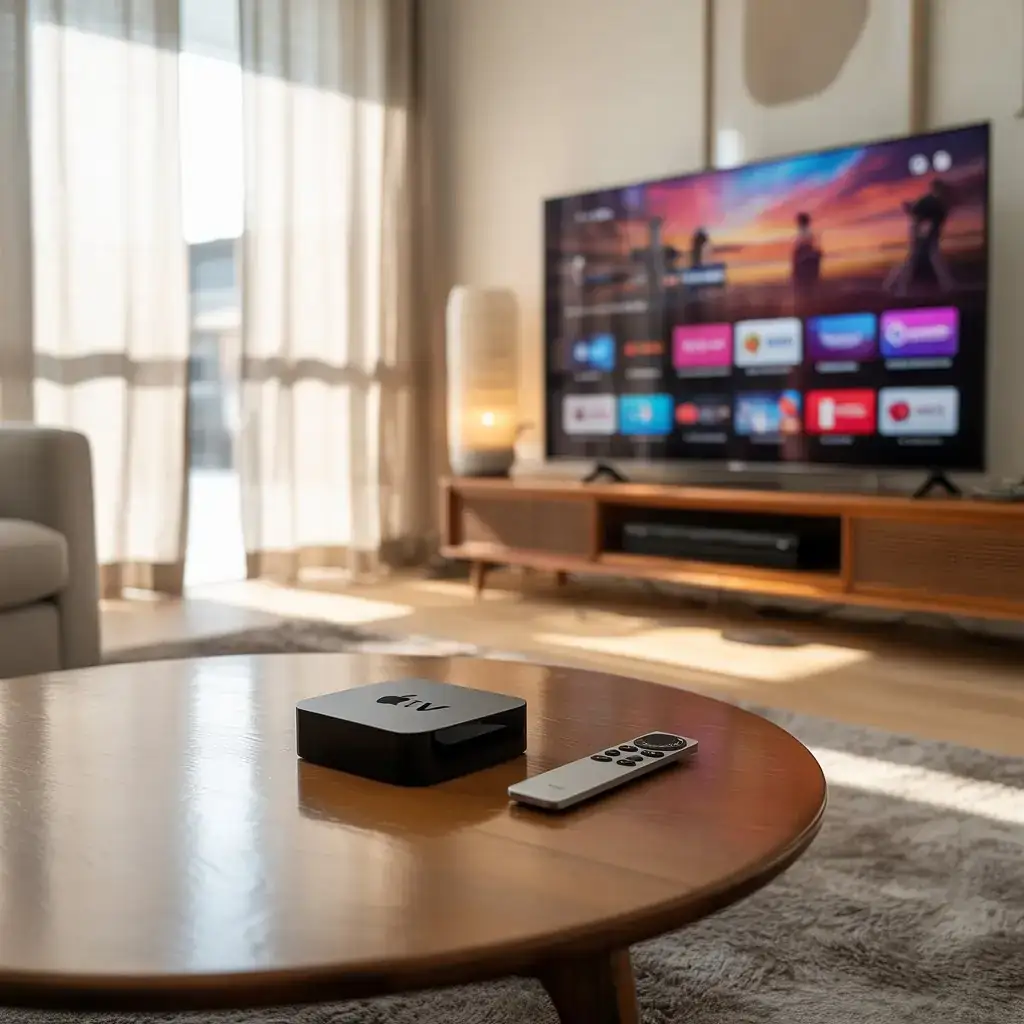
In the evolving landscape of home entertainment, many Apple TV owners find themselves wondering: can Apple TV play IPTV? The short answer is yes—Apple TV devices are perfectly capable of streaming IPTV content with the right setup and applications. This comprehensive guide walks you through everything you need to know about getting IPTV working smoothly on your Apple TV, from choosing the iptv app for apple tv to troubleshooting common issues.
Can Apple TV Play IPTV: The Basics
IPTV (Internet Protocol Television) delivers television content over internet protocols rather than traditional satellite or cable formats. This modern approach to content consumption offers flexibility, extensive channel lineups, and often at more competitive prices than conventional TV subscriptions.
Apple TV, with its powerful processing capabilities and user-friendly interface, makes an excellent platform for IPTV services. However, since Apple maintains strict control over its App Store, getting IPTV working requires understanding a few key aspects of both technologies.
Apple TV Models Compatible with IPTV
Not all Apple TV models handle IPTV content equally well. Here’s a breakdown:
- Apple TV 4K (2nd and 1st generation): Offers the best performance for IPTV with 4K capabilities, powerful processors, and full App Store access
- Apple TV HD (4th generation): Good performance with 1080p resolution limit
- Apple TV 3rd generation and older: Limited IPTV functionality, typically requiring AirPlay from another device rather than native apps
The newer your Apple TV model, the better your IPTV experience will be, with 4K models providing the smoothest streaming and most app compatibility.
Methods to Watch IPTV on Apple TV
There are several approaches to watching IPTV on your Apple TV device:
1. Native IPTV Apps from the App Store
The most straightforward method is using dedicated IPTV applications available directly from the Apple TV App Store. Some popular options include:
- IPTV Smarters Pro: User-friendly interface with extensive customization options
- GSE Smart IPTV: Supports multiple playlist formats and offers strong stability
- iPlayTV: Clean design with support for EPG (Electronic Program Guide)
- Channels: Premium app with DVR capabilities for recording IPTV streams
To set up these apps:
- Download your chosen app from the App Store
- Enter your IPTV service provider’s M3U playlist URL or credentials
- Configure any additional settings like EPG URLs
- Start streaming your channels
2. Smart DNS Proxy Method
Some IPTV services work better through Smart DNS proxy configurations:
- Register with a Smart DNS provider compatible with Apple TV
- Configure your Apple TV’s DNS settings according to provider instructions
- Use the provided apps or built-in streaming capabilities
This method can improve access to geo-restricted content and sometimes provides better streaming performance.
3. Using AirPlay from iOS Devices
If direct apps aren’t available or working well:
- Install an IPTV app on your iPhone or iPad
- Configure your IPTV service on the mobile device
- Use AirPlay to mirror your screen to Apple TV
- Stream content from the mobile device to your TV
While not as elegant as native apps, this method works with older Apple TV models and can sometimes bypass restrictions.
Setting Up IPTV on Apple TV: Step-by-Step Guide
Let’s walk through the complete setup process using the native app method, which provides the best experience:
Step 1: Choose the Right IPTV Service
Before setting up, ensure you have a reliable IPTV service that:
- Provides M3U playlists or API credentials
- Offers EPG (Electronic Program Guide) data
- Has good server reliability and bandwidth
- Supports the channels and content you want to watch
Step 2: Install an IPTV Application
- On your Apple TV, go to the App Store
- Search for and download one of the recommended IPTV apps
- Launch the app once installed
Step 3: Configure Your IPTV Service
Most apps follow a similar configuration process:
- Navigate to settings or add playlist option
- Enter your M3U playlist URL, which usually looks something like:
http://provider-address.com:port/get.php?username=xxx&password=yyy&type=m3u_plus - Add your EPG URL if provided by your service
- Save your configuration
Step 4: Customize Your Viewing Experience
Once connected:
- Organize channels into favorites for quick access
- Adjust video quality settings based on your internet speed
- Configure EPG timeframes to see upcoming programs
- Set parental controls if needed
Troubleshooting Common IPTV Issues on Apple TV
Even with proper setup, you might encounter some issues:
Buffering Problems:
- Check your internet connection speed (minimum 25Mbps recommended for HD content)
- Close other bandwidth-intensive applications
- Try connecting Apple TV via ethernet instead of Wi-Fi
- Contact your IPTV provider to check server status
App Crashes:
- Restart the IPTV app
- Restart your Apple TV (Settings → System → Restart)
- Check for app updates
- Reinstall the application
Channel Loading Failures:
- Verify your subscription is active
- Refresh your M3U playlist
- Try an alternative IPTV app
- Contact your provider to ensure server availability
Legal Considerations for IPTV Use
When using IPTV services, be aware of legal considerations:
- Ensure your IPTV provider has proper licensing for the content they offer
- Be cautious of services offering premium channels at unusually low prices
- Check local regulations regarding IPTV services in your region
- Consider using a VPN for additional privacy, but understand this doesn’t make unauthorized content legal
Enhancing Your IPTV Experience on Apple TV
To get the most out of your setup:
- Use wired connections whenever possible for stability
- Invest in sufficient bandwidth (50+ Mbps recommended for households using IPTV)
- Consider a VPN service that’s compatible with Apple TV for accessing geo-restricted content
- Regularly update both your Apple TV software and IPTV apps
- Explore multiple apps to find which works best with your specific IPTV service
Final Thoughts
Can Apple TV play IPTV? Absolutely! With the right approach, Apple TV provides an excellent platform for IPTV content consumption. The combination of Apple’s reliable hardware and the flexibility of IPTV services creates a powerful entertainment solution that can replace or supplement traditional cable subscriptions.
As streaming technology continues to evolve, Apple TV remains at the forefront of devices capable of delivering high-quality IPTV experiences. By following the steps in this guide and choosing the right iptv app for apple tv, you’ll be enjoying thousands of channels in no time.
If you’re looking for a reliable IPTV service to pair with your Apple TV setup, consider checking out Viking IPTV at https://vikings-iptv.se/. our services are designed to work seamlessly with Apple TV devices, providing extensive channel lineups and reliable streaming quality for all your entertainment needs.



